
Desktop recorder
BlaBlaNote Recorder is the desktop app that lives in the menu bar (macOS) or the system tray (Windows). During a meeting it records your system audio and your microphone, sends them to BlaBlaNote for transcription, and files the recording under the meeting in your calendar, linked to the attendees who are already your contacts.
Download and install
- macOS (Apple silicon): download the
.dmgfrom the releases page. - Windows 10 or 11: download the installer.
The recorder is part of the Pro plan. Without it, you will see View plans instead of the record button.
It updates itself: the new version downloads in the background and, once it is ready, the recorder shows Update ready — restart. While you are recording, the notice waits until you finish. Before version 0.1.49 it also showed during a recording: do not restart until you finish. The version is in the menu of the tray icon.
Connect your account
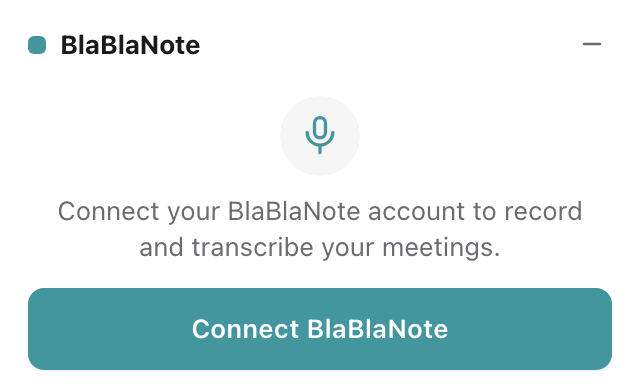
The first time, click Connect BlaBlaNote. Your browser opens, you sign in with your BlaBlaNote account, and the recorder is ready. You only do this once.
Permissions on macOS
The first time you record, macOS asks for two permissions:
- Microphone: allow it when the macOS prompt appears.
- Screen Recording: macOS requires it to capture system audio. The recorder discards the picture straight away and keeps only the audio.
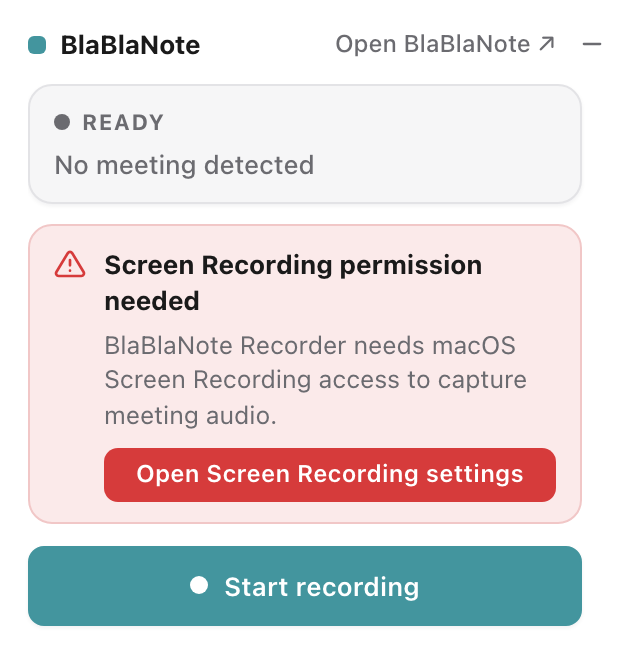
If the Screen Recording permission is missing, the recorder tells you so, with a button that opens the right settings pane. Windows needs no permission.
Record a meeting
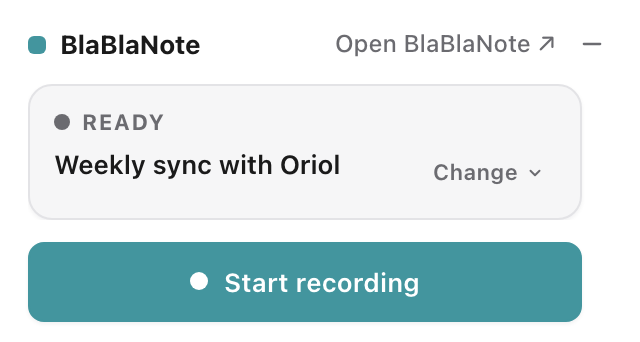
- Open the recorder from its icon in the menu bar. If your calendar is connected (Google or Outlook), it shows the meeting in progress. When one is about to start (up to 5 minutes before), the panel opens by itself to offer to record it.
- Click Start recording. You can also record with no meeting in your calendar.
- When you are done, click Finish. The recorder finishes uploading the audio in the background; you can close the panel.
Only meetings with other attendees count: not all-day events or blocks with no guests. If what you are about to record is not the meeting shown, click Change: the list of meetings opens, with No event at the end so the recording is not filed under any.
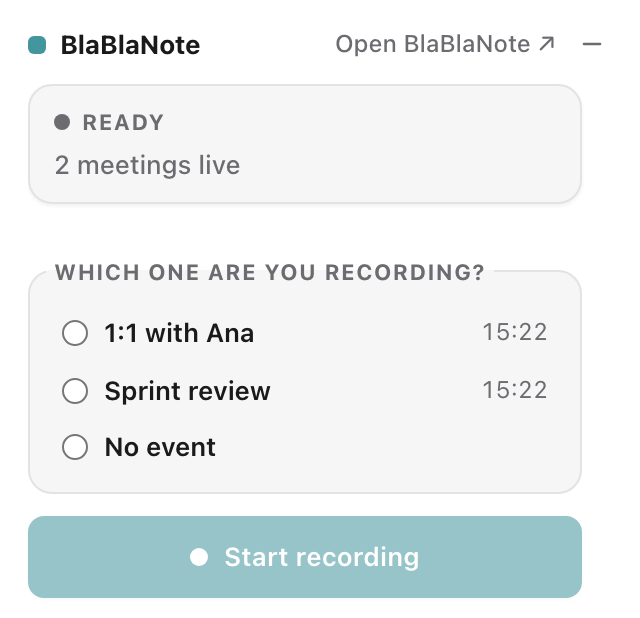
If two meetings overlap, the recorder asks which one you are recording and will not start until you choose. If it is neither, choose No event.
Pause, finish or discard
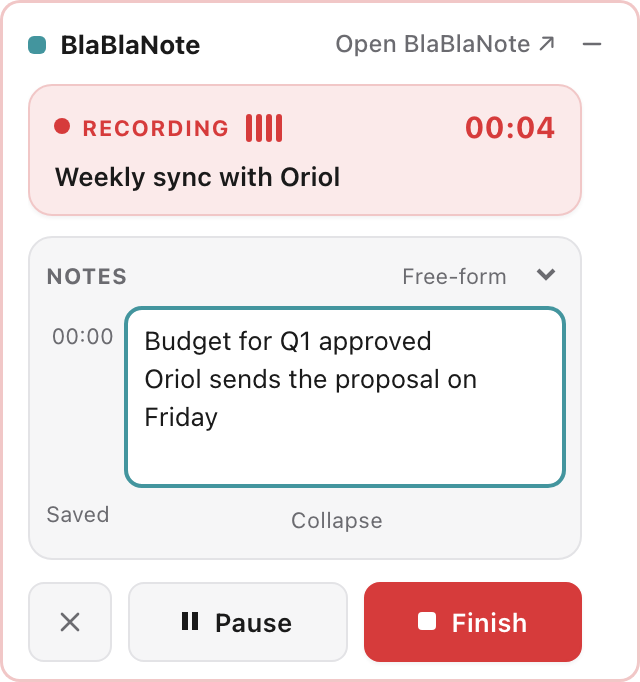
While you record, the panel has a red frame, a recording indicator and the timer:
- Pause / Resume: stops recording without closing the recording. When you resume, it is still the same recording.
- Finish: closes the recording and sends it for transcription.
- ✕ (Discard recording): throws the recording away, without asking for confirmation. It is not transcribed, and both what was already uploaded and the copy on your computer are deleted.
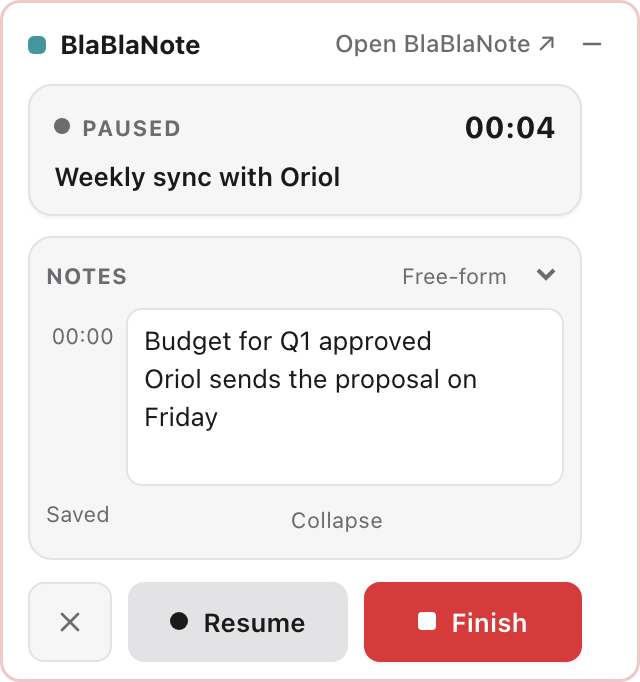
Take notes
When you start recording, the Notes panel opens so you can type while you talk. The notes travel with the recording, and new lines are stamped with the moment in the recording when you wrote them (at most one stamp every 30 seconds). The panel menu offers templates to start from: 1:1, Discovery and Networking; the default is Free-form. Collapse folds it away.
If you forget to stop
If the recording is still running when the calendar meeting ends (or after an hour, if the meeting is longer), the recorder asks whether to keep going, in the panel and with a system notification. Click Keep recording to continue or Stop & save to finish. If you do not answer within 5 minutes, it stops and saves the recording. After that it asks again every 30 minutes if there was a meeting, or every hour if not.
A recording can last at most about 3 hours and 20 minutes; at the limit it saves itself.
After recording
The menu bar icon tells you where things stand, without opening anything:
- Idle: the rings in the colour of the menu bar.
- Recording: red rings.
- Uploading: the rings spin while the audio finishes uploading.
If you are offline, the audio waits on your computer and uploads by itself when the connection comes back. When the transcription is ready, the recorder lets you know with a notification; clicking it opens the interaction in BlaBlaNote. Open BlaBlaNote ↗ opens the app at any time.
Who is speaking in the transcription
Recordings made with the desktop recorder are transcribed by voice: the transcription reads like a dialogue, with one turn for each voice. This only happens with this recorder. What you record from the web or your phone captures only your microphone and does not separate voices.
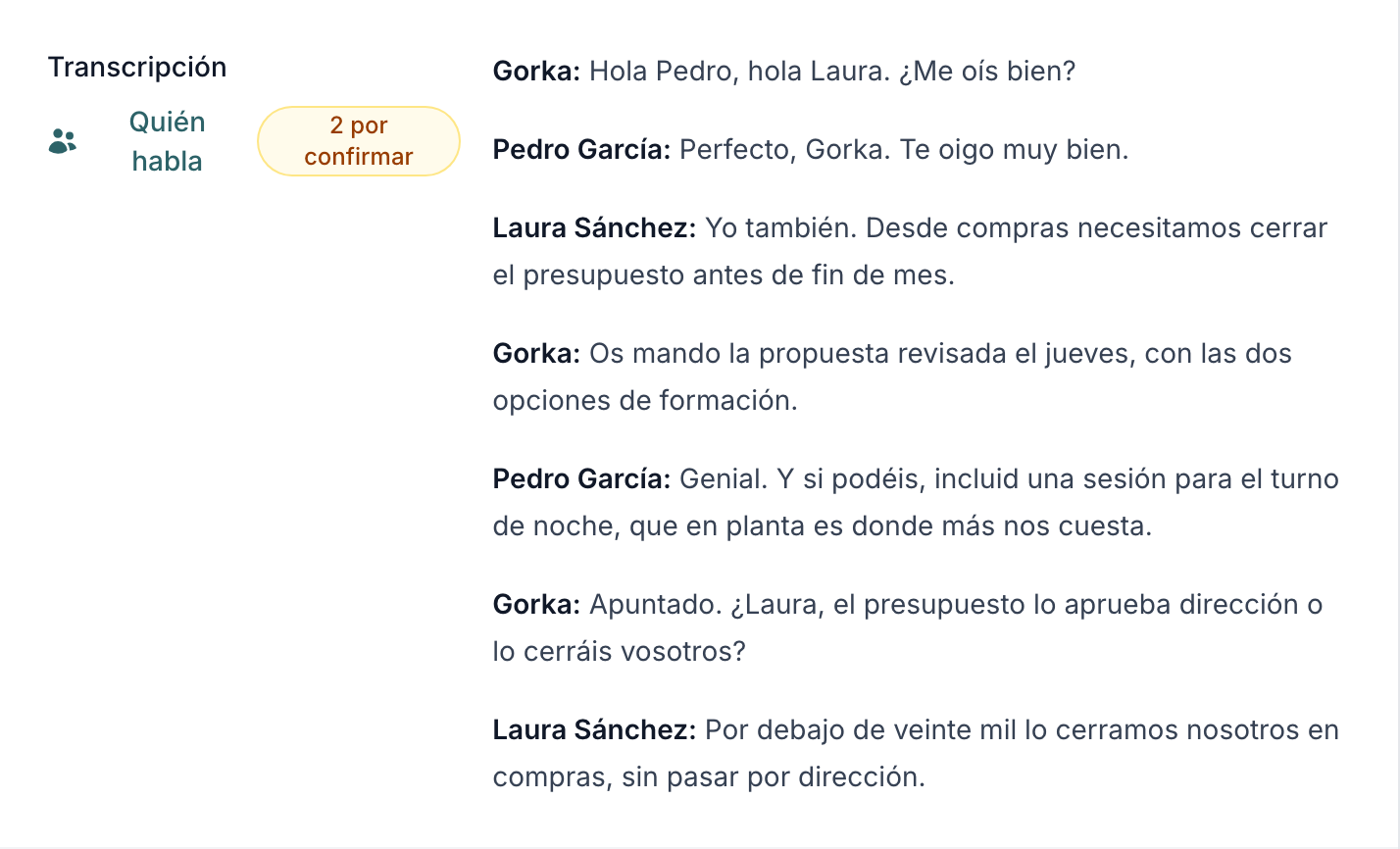
The recorder measures your microphone and the system sound separately before mixing them, so it knows which voice is yours. Your turns carry your first name, and the others show as «Speaker 1», «Speaker 2», and so on:
Gorka: This is a recording.
Speaker 1: It is indeed a recording.
Recognising your voice needs a recent version of the recorder, which updates itself. And because the AI that summarises the interaction knows what you said («Gorka committed to…»), tasks and next steps come out better.
Name each voice
In the interaction, the Transcription row shows the Who is speaking link with the voices still to name, for example 2 unnamed. Clicking it opens Who is speaking in this recording?, with one row per voice.
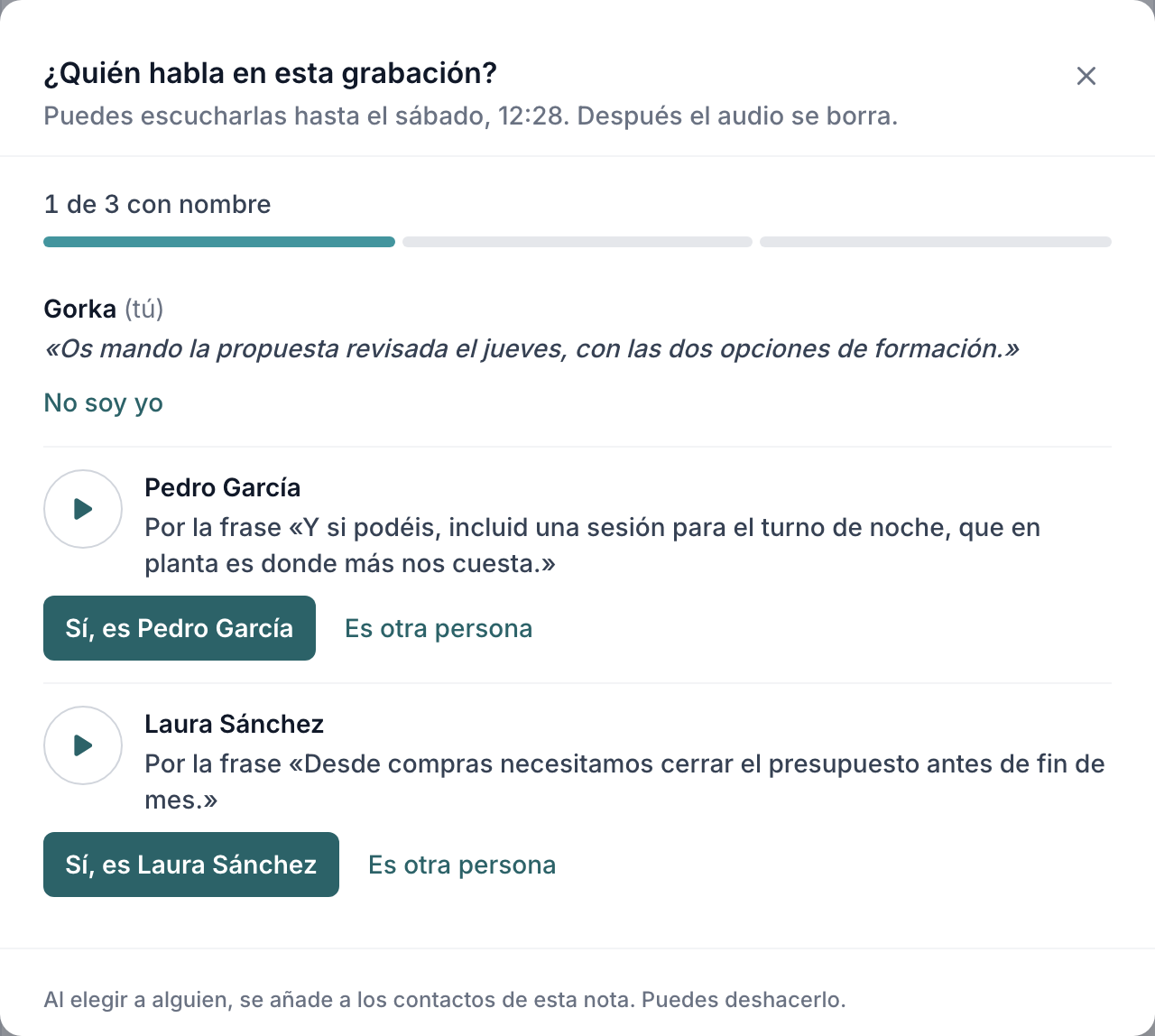
For each voice you can:
- Listen to it: ▶ plays two or three short clips of what it said.
- Choose who it is: from the people in the meeting (In this meeting), with Search my contacts, or by creating a new contact (Create contact «…»).
- I don't know: leave it without a name, if you are not sure.
- Not me, if the recorder marked as yours a voice that is not.
When you name a voice, the transcription changes straight away. Confirming who a voice is links that contact to the interaction. If you got it wrong, click Undo in the notice that appears.
The AI suggests, you confirm
The AI suggests who each voice is from what is said in the conversation: someone says «Hi Pedro», or a voice mentions their job title or company. It only suggests among the contacts already around the interaction: the meeting's invitees and the contacts detected in it.
In the window, the suggestion shows the sentence it comes from (for example, Suggested from «Hi Pedro») and a ▶ to listen to it. You decide: Yes, it's Pedro García or It's someone else. While suggestions are waiting for you, the link says so, for example 1 to confirm.
- It never links on its own. Until you confirm it, it is only a suggestion and links nobody.
- If nothing identifies a voice, it suggests nobody. «Speaker 1» is better than a wrong name.
24 hours to listen
The audio is kept for 24 hours so you can listen to the voices. After that you can still name them, but without ▶: you go by what they said.
No voiceprint
BlaBlaNote does not store what anyone sounds like and does not recognise anyone by their voice. Who each voice is comes only from what was said and from what you choose. The audio is stored encrypted, transcribed inside the European Union and deleted 24 hours after it is received. It is not used to train models.
Tell the people in the meeting that you are recording. It is the right thing to do, and in many places it is what the law requires.
Local copy of your recordings
The recorder keeps a copy of every recording on your computer as a backup. If a recording never reaches BlaBlaNote, or you need the original audio for any reason, you can get it back from there.
- Format: one WAV file per recording, named after the date and time it started:
2026-10-08_14-30_<identifier>.wav. - Size: about 115 MB per hour of meeting.
- If the app closes unexpectedly, the copy keeps all the audio except, at most, the last 10 seconds.
Where it is
The folder is hidden by default:
| System | Folder |
|---|---|
| macOS | ~/Library/Application Support/BlaBlaNote Recorder/recordings |
| Windows | %APPDATA%\BlaBlaNote Recorder\recordings |
- macOS: in Finder, choose Go → Go to Folder… (⇧⌘G) and paste the path.
- Windows: paste the path into the File Explorer address bar.
When it is deleted
- Only when you discard the recording in the recorder. The copy is deleted with it.
- It is not deleted when the recording is uploaded, when you log out, when you discard it on the web, or as time passes.
The copy is unencrypted audio on your computer. If you share the computer, or want to free up space, delete it by hand from that folder.